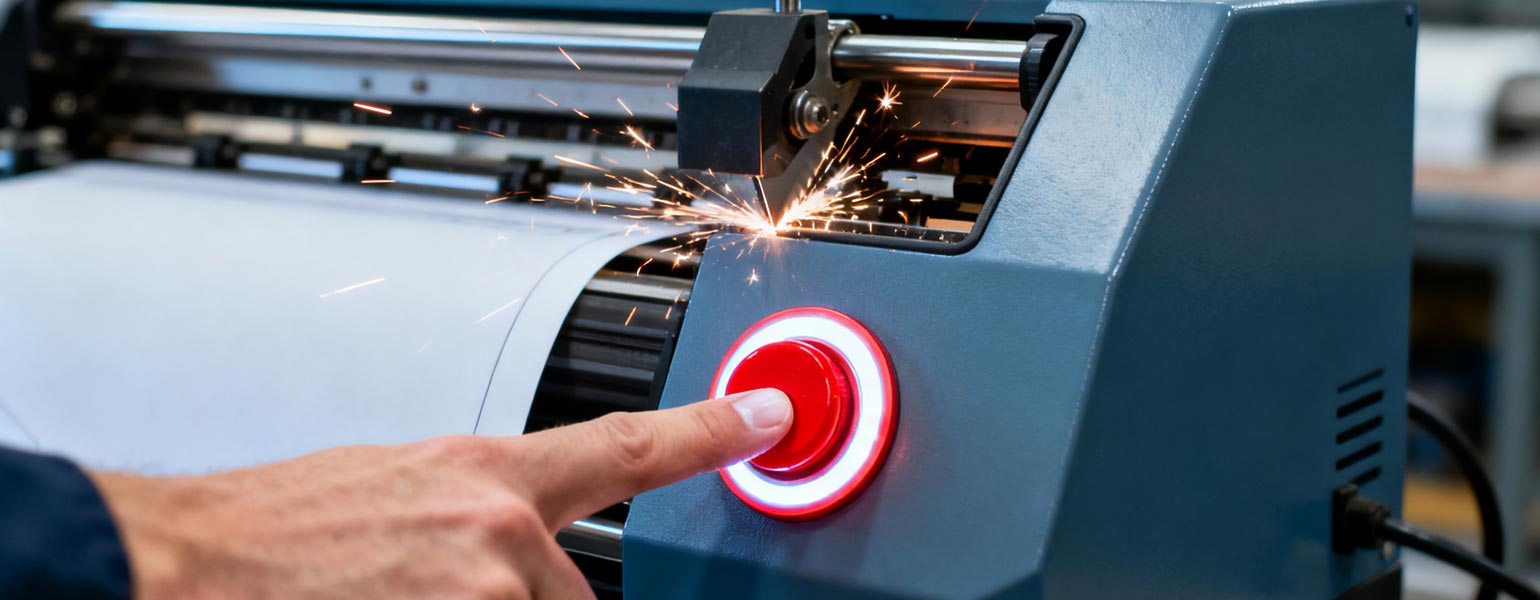
In the printing and sign-making industry, many users have probably faced this frustrating situation — your cutter plotter suddenly goes out of control, cutting endlessly and refusing to stop.
Don’t panic — this issue is actually quite common. The key is to stay calm and handle it correctly.
Based on Signzworld’s after-sales experience, we’ve put together a practical troubleshooting guide to help you deal with this problem quickly and effectively.
Emergency Actions
1. Disconnect the power
Unplug the machine or switch off the main power immediately. This will force the cutter to stop running and help prevent further damage to the blade, motor, or carriage.
2. Remove the data cable
Unplug the USB or COM cable that connects your cutter plotter to the computer. This stops the software from sending continuous or corrupted cutting commands to the machine.
Possible Causes and How to Check
1. Software freeze or incorrect commands
Check your cutting software (such as SignMaster, Flexi, ArtCut, or CorelDRAW plugins).
If you see messages like “incomplete task” or “communication error,” close the program and restart your computer before trying again.
2. Driver or port conflicts
If your PC is connected to multiple serial devices — like printers, plotters, or scanners — there might be a port conflict.
Go to Device Manager and verify that the COM port number assigned to your cutter matches the one set in your cutting software.
3. Firmware or mainboard malfunction
Sometimes, a voltage surge or static electricity can cause the mainboard to freeze in a loop.
Unplug the machine, wait for 3–5 minutes, and then power it back on to reset the system.
4. SD card or internal cache not cleared
Some cutter plotters save the last cutting job in internal memory.
Refer to your user manual — in many models, holding the “Stop” or “Reset” button while powering on can clear cached jobs and reset the machine.
Testing After Reset
- Reinstall the cutter driver on your computer.
- Open your cutting software and try a simple shape test cut (for example, a small rectangle).
- If the issue persists — such as continuous cutting or the machine freezing again — the mainboard or firmware may be damaged and should be repaired or updated by the manufacturer.
Conclusion
A cutter plotter that keeps cutting non-stop is a common but fixable issue.
In most cases, it can be resolved by updating your software or driver, resetting the power, and restarting your computer.
If none of these steps work, it’s best to contact the manufacturer or a qualified technician for professional support.
At Signzworld, we offer a wide range of cutter plotter machines and provide reliable after-sales service backed by years of experience.
Our expert team can help you solve various hardware or software issues — so you can get back to creating with confidence.