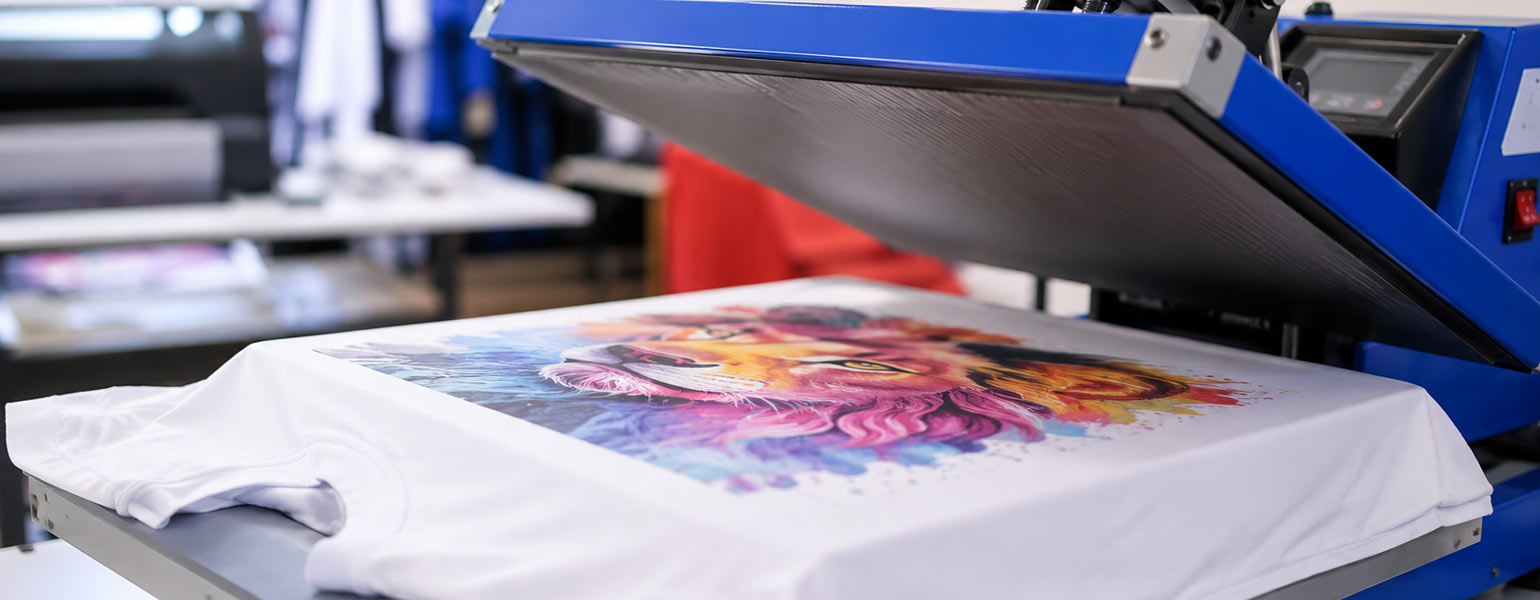
Sublimation printing has become a go-to method for creating vibrant, long-lasting designs on mugs, apparel, phone cases, slate, and many other custom products. When everything works as it should, the results are impressive: sharp details, rich colours, and prints that won’t crack or peel.
However, anyone who has spent time with a sublimation printer knows that things don’t always go smoothly. Faded colours, blurry images, paper jams, or uneven transfers can quickly turn a productive day into a frustrating one. The good news is that most sublimation printer problems are common, predictable, and relatively easy to fix once you understand the causes.
To make troubleshooting easier, here’s a quick overview of a step-by-step approach:
1. Identify the specific issue you’re encountering with your print.
2. Check if the problem is listed in our guide.
3. Review common causes associated with the issue.
4. Apply the recommended solutions.
5. Monitor the results and make further adjustments if necessary.
From here, we’ll walk through the most common sublimation printer errors and issues, explain why they happen, and offer simple, practical solutions you can apply straight away. Whether you’re a beginner or running a small printing business, these tips will help you get more consistent results and reduce wasted materials.
1. Faded or Dull Sublimation Prints
The problem:
Your finished product looks washed out, lacking the vibrant colours you expected.
Common causes:
- Incorrect colour profile
- Low heat or insufficient pressing time
- Poor-quality sublimation ink or paper
- Printing on non-sublimation-coated materials
How to fix it:
Start by checking your ICC profile. Make sure you are using the correct profile for your specific sublimation printer and ink combination. ICC profiles are typically provided by your printer or ink manufacturer and can be found on their websites. Once downloaded, you can install these profiles via your computer’s colour management settings or your design software’s preferences. This alone solves many color issues.
Next, review your heat press settings. Most sublimation transfers require temperatures between 180–205°C with consistent pressure and the correct time. Too little heat prevents the ink from fully converting into gas and bonding with the coating.
Finally, confirm that your blanks are truly sublimation-ready. Regular mugs, fabrics, or coated items will never produce strong results, no matter how good your printer is.
2. Colours Look Different on the Screen
The problem:
What you see on your monitor doesn’t match the final printed product.
Common causes:
- Monitor not calibrated
- Wrong colour mode (RGB vs CMYK)
- Missing or incorrect ICC profiles
How to fix it:
First, accept that sublimation printing will never be a perfect screen match, but it can be very close. Calibrate your monitor if possible, or at least reduce brightness to a realistic level.
Always design in RGB, as most sublimation printers are optimised for RGB workflows. Then ensure the correct ICC profile is selected in your design software and printer settings. Avoid letting multiple programs manage colour at the same time, as this often causes unexpected shifts.
3. Blurry or Ghosted Images
The problem:
Your image looks sharp on paper, but blurry or shadowed after heat pressing.
Common causes:
- Sublimation paper moving during pressing
- Uneven pressure
- Excessive moisture in paper or blanks
How to fix it:
Secure your sublimation paper using heat-resistant tape on at least two sides. This prevents movement when the heat press closes or opens.
Check your pressure settings. Too much pressure can cause ink to spread, while uneven pressure leads to distortion.
Moisture is another common culprit. Store sublimation paper in a dry environment and pre-press fabrics or blanks for a few seconds to remove trapped moisture before transferring.
4. Paper Jams and Feeding Issues
The problem:
Your printer frequently jams or struggles to feed sublimation paper smoothly.
Common causes:
- Paper loaded incorrectly
- Using paper that’s too thick for the printer
- Dust or residue inside the printer
How to fix it:
Always follow the printer manufacturer’s recommended paper loading direction. Sublimation paper often has a printable side, so double-check orientation.
If jams persist, try reducing the number of sheets in the tray. Cleaning the rollers with a lint-free cloth can also improve feeding, especially in dusty environments.
5. Banding or Lines Across Prints
The problem:
Horizontal or vertical lines appear across your printed design.
Common causes:
- Clogged print head nozzles
- Low ink levels
- Infrequent printer use
How to fix it:
Run a nozzle check and cleaning cycle through your printer’s maintenance menu. This usually clears minor clogs.
If you don’t use your sublimation printer daily, it’s a good habit to print a small test image every few days to keep ink flowing smoothly. Always monitor ink levels and avoid letting cartridges run completely dry.
6. Ink Smudging on Sublimation Paper
The problem:
The ink smears when touched or leaves marks before pressing.
Common causes:
- Touching the print before it dries
- Excess ink saturation
- Low-quality sublimation paper
How to fix it:
Allow your prints to dry fully before handling. While sublimation ink dries quickly, high-ink-coverage areas may need extra time.
If smudging continues, reduce ink density in your printer settings or switch to a higher-quality sublimation paper designed for fast drying and controlled ink absorption.
7. Uneven or Patchy Transfers
The problem:
Some areas transfer perfectly, while others look lighter or incomplete.
Common causes:
- Uneven heat press temperature
- Inconsistent pressure
- Warped or curved blanks
How to fix it:
Use a reliable heat press with even temperature distribution. Periodically test different areas of the platen using temperature strips or an infrared thermometer.
For curved items like mugs, ensure the mug press fits the shape correctly and applies even pressure. Rotating the item halfway through pressing can also help in some cases.
8. Printer Not Recognising Sublimation Ink
The problem:
The printer displays errors after installing sublimation ink.
Common causes:
- Incompatible printer model
- Chip or cartridge recognition issues
How to fix it:
Always confirm that your printer model supports sublimation ink, whether factory-installed or converted. Use inks designed specifically for your printer brand. If recognition errors occur, reseat the cartridges and restart the printer.
9. Software or Driver Problems
The problem:
Print jobs fail, settings don’t save, or output quality changes unexpectedly.
Common causes:
- Outdated printer drivers
- Conflicting software settings
How to fix it:
Update your printer drivers and firmware from the manufacturer’s official source. Keep your design software up to date and avoid changing multiple settings at once. If problems arise, reset to default settings and reapply only the essential adjustments.
Building a More Reliable Sublimation Printing Setup
Many sublimation printing problems don’t come from a single mistake, but from small inconsistencies adding up: mismatched profiles, unstable heat settings, or low-quality equipment. Choosing a reliable printer designed for sublimation use can significantly reduce these issues and make daily operation much smoother.
Signzworld offers a range of sublimation printers built with stability, colour consistency, and ease of use in mind. Designed for both beginners and professional users, their machines help minimise common errors while delivering dependable print quality for everyday production.
With the right setup, proper materials, and a clear understanding of these common sublimation printer problems, you’ll spend less time troubleshooting and more time creating high-quality products your customers will love.